Your round settings are where you set the defaults and rules that make everything else fast. Set them once and new jobs, invoices and planning just follow: a new job picks up your usual price and frequency, the planner already knows your week, and every invoice prints your business details. You can change any of it later, so treat setup as a first pass, not a commitment.
You'll find these under Settings, laid out as a list of sections down the side. This guide walks each section in that order, spending most time on the handful that shape your day-to-day work and keeping the money and admin ones short.
Only a round's Manager can change these settings. If you work a round as a Worker you can still open every section and read what's set, but the fields are read-only.
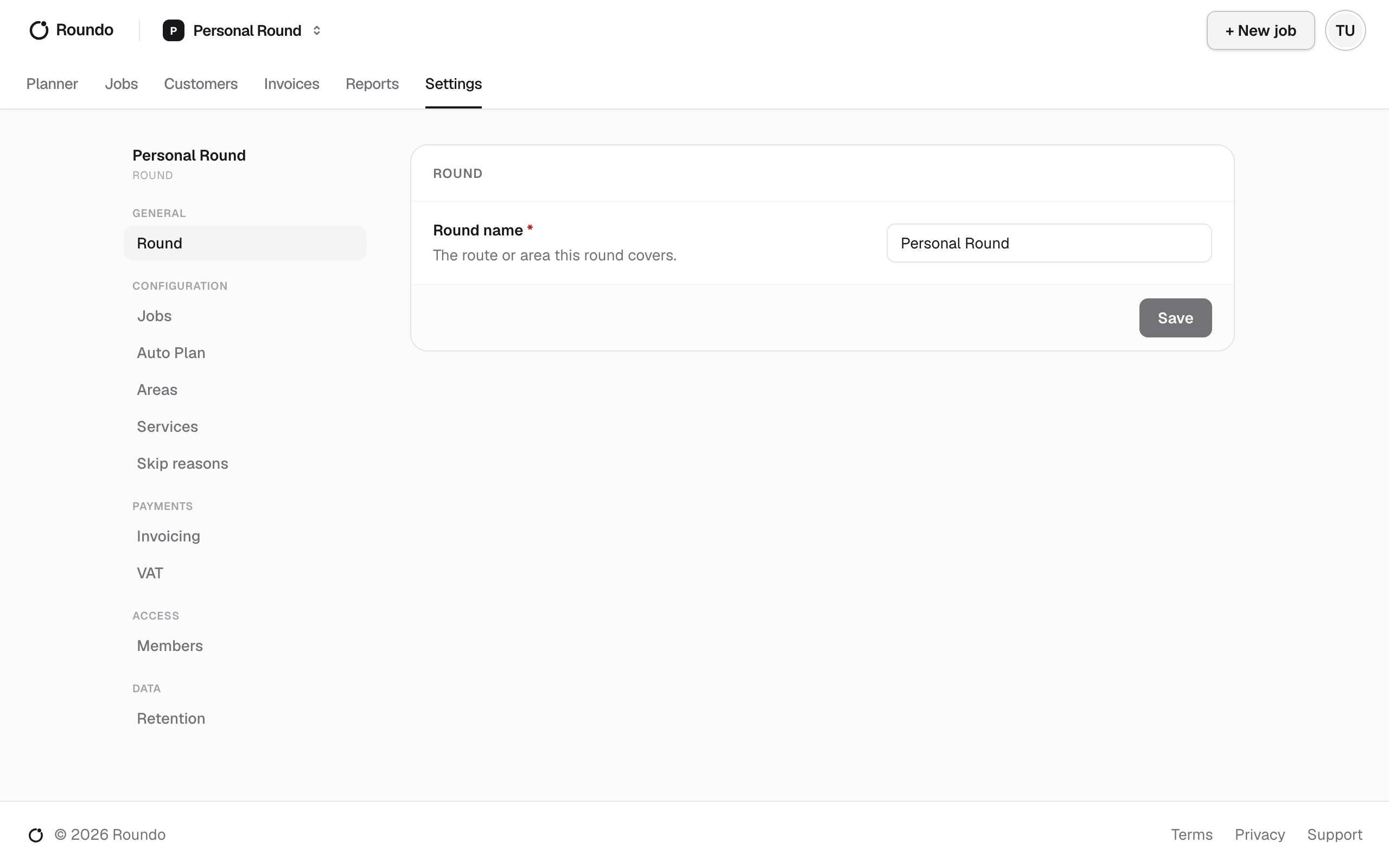
Round
The first section just names the round. A round is one person's whole book of jobs, so the name is usually the route or area it covers, for example "North side" or your own name if you run a single book. It's what you'll see in the round switcher at the top of the app, so give it something you'll recognise at a glance. If you run one round on your own, it's already been created for you and you can leave the name as is.
Jobs
Job defaults are the values a brand-new job starts with, so you're not retyping the same figures on every job you add. Set them to whatever is typical for this round and each new job inherits them; you only change the odd job that differs.
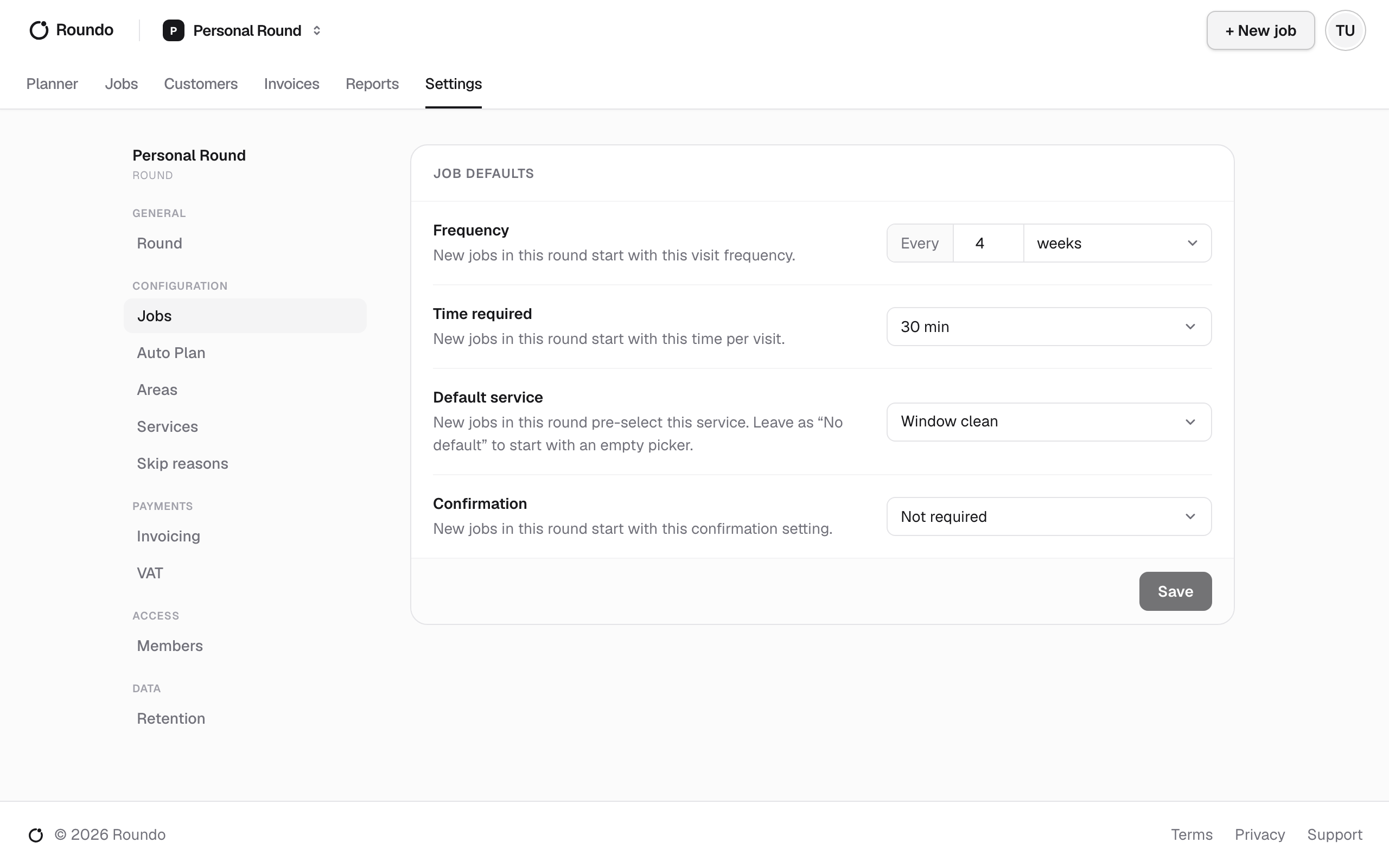
- Frequency is how often a job comes round again, entered as "Every" a number of days, weeks, months or years. Most rounds set this to their common visit cycle, for example every four weeks, and a new job starts there.
- Time required is how long a typical visit takes. The planner uses it to judge how much work fits on a day, so a sensible default here makes Auto Plan fill your days well.
- Default service pre-selects a service on the new-job form (for example a window clean), pulled from this round's own services list below. Leave it as "No default" if your round does a real mix and you'd rather pick each time.
- Confirmation sets whether new jobs default to needing the customer told before a visit.
If your round is VAT registered, one more default appears here: Prices include VAT. Turn it on and new jobs treat their price as VAT-inclusive; turn it off and new jobs default to VAT-exclusive, where VAT is added on top of the price. It only shows for a VAT-registered round, because with no VAT the two are the same.
Auto Plan
This section, titled Auto Planning, holds the settings that feed the planner. The key one is Fillable hours: a row per weekday where you either set how many hours you'll work that day or turn the day off. This is how Auto Plan knows when a day is full, so set it to the shape of your real week and your weekends stay clear unless you want them.
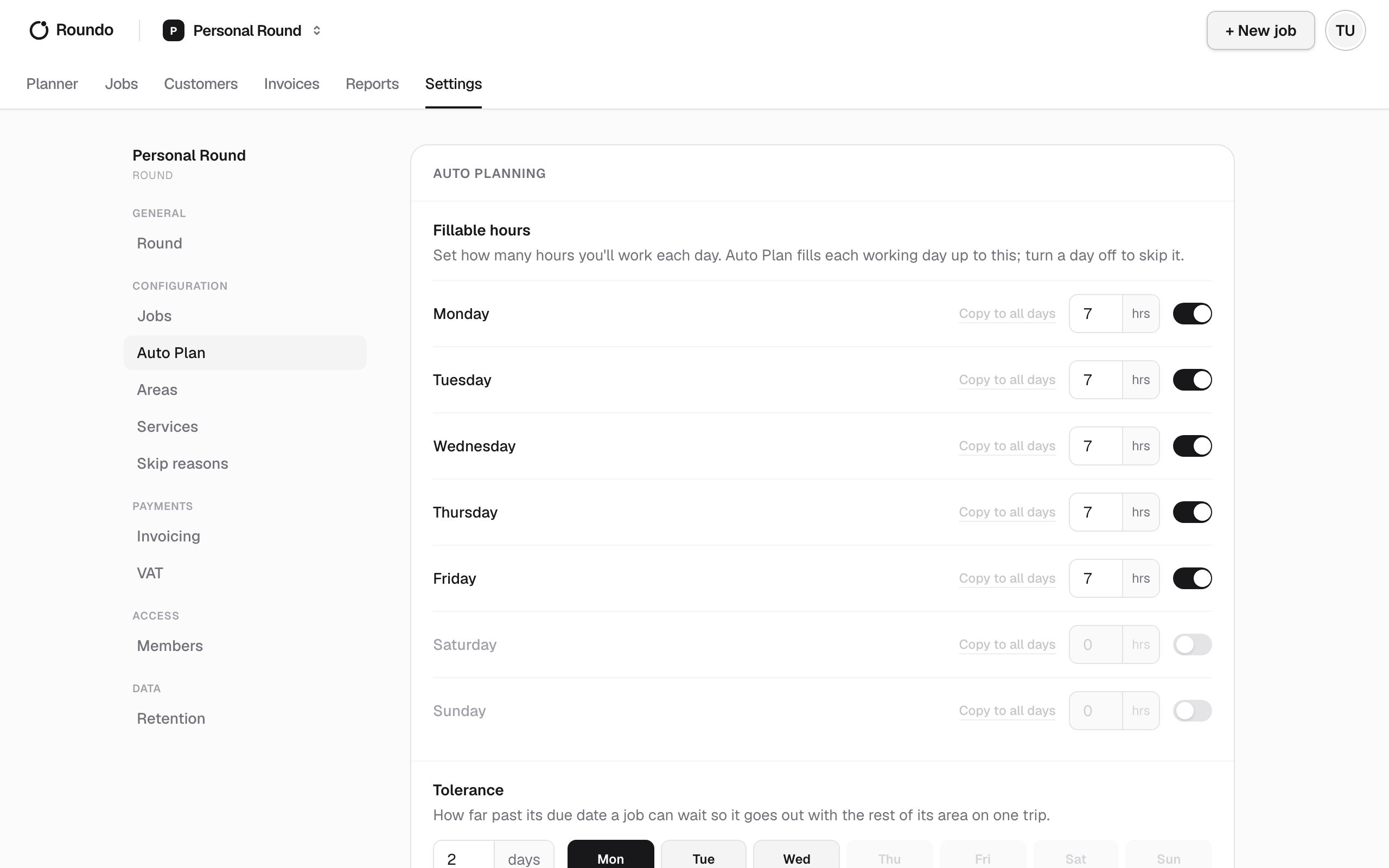
Two more dials sit below. Tolerance controls how far past its due date a job may wait so it can go out with the rest of its area on one trip, and Due soon window sets how many days ahead count as "due soon" when you're looking at what's coming up.
Auto Plan itself is a bigger topic than the settings alone, so for how planning a day or a week actually places jobs, and how these settings shape the result, see How Auto Plan works.
Areas
An area is a set of jobs on the same road that you like to do together in one trip. Here you create and name your areas (for example a street name); you then put a job in an area from the job's own Area field.
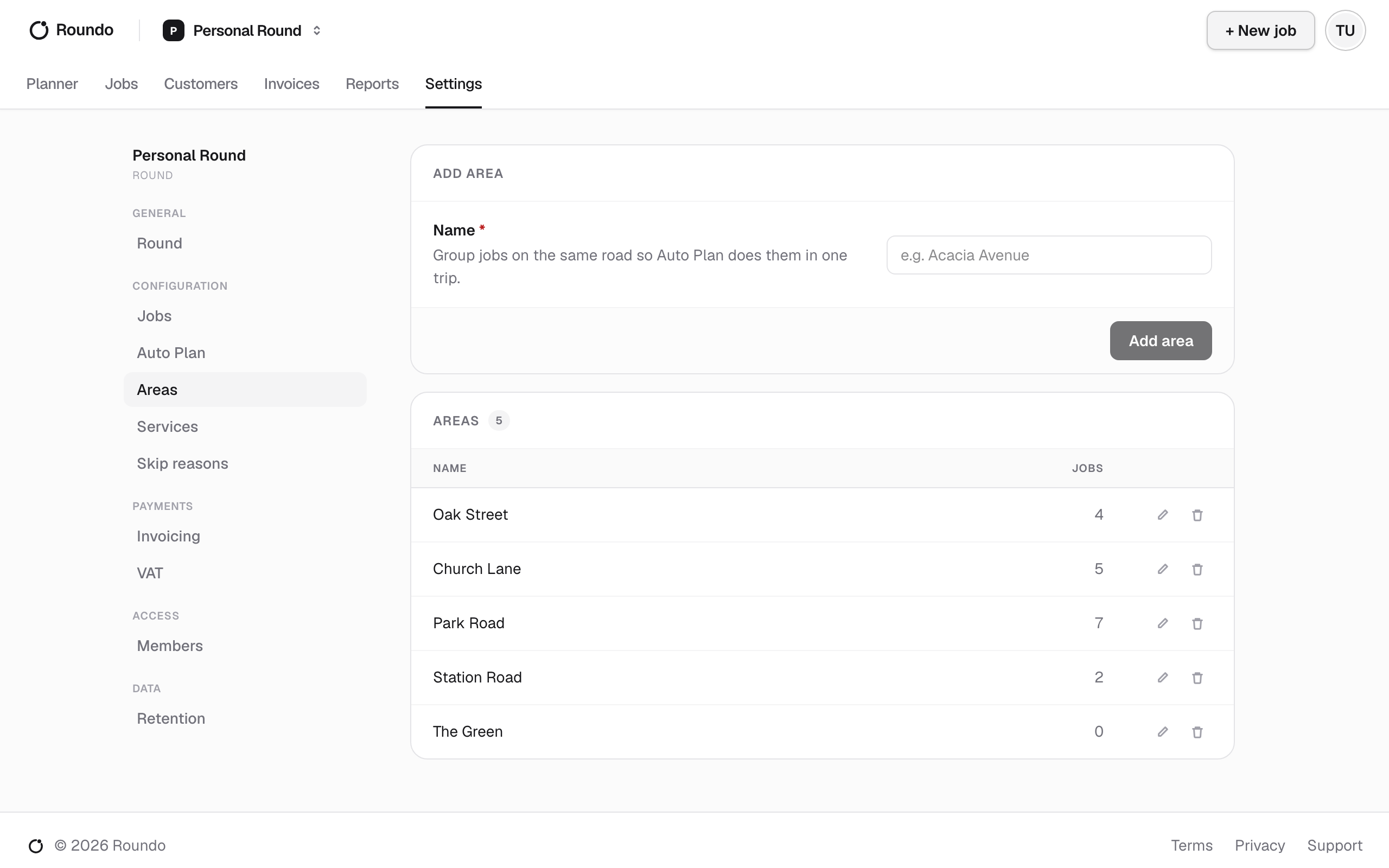
Areas are worth setting up because Auto Plan tries to keep an area together on one day rather than scattering a street across the week. Deleting an area doesn't delete its jobs: they simply stop being grouped. If most of your work is on a handful of roads, a few areas here make your planned days tidier and your trips shorter.
Services
Your services list is the set of work types a job in this round can be. A service is just a name, for example "Window clean" or "Gutter clear". Every job must be one of these, so this list is what the new-job service picker offers, and it's where the Jobs default service is chosen from.
Add the handful of services you actually offer and you'll pick from them quickly whenever you create a job. Renaming a service updates the picker but leaves past jobs as they were, and archiving one takes it out of the picker while keeping it on the jobs that already used it.
Skip reasons
Skip reasons are your own list of why a visit didn't happen, offered by the skip picker on the worksheet and in the field. Add the reasons you actually use (for example "Scaffolding up" or "Gate locked") and keep an "Other" for anything the list doesn't name, where the visit's note carries the detail. A skipped visit records the reason text at the time, so editing this list only changes what the picker offers next.
Invoicing
This is the branding printed on the round's invoices: your business name and address, an optional logo, payment terms and footer wording, the prefix on each invoice number (for example INV-), and how many days after issue an invoice is due. Fill it in before you send your first invoice so it goes out looking like your business.
VAT
If this round is VAT registered, turn registration on here and enter your VAT number and rate (defaulting to 20% in the UK). Once on, the round's invoices charge VAT, show a Net / VAT / Gross breakdown, and print your VAT number, and the VAT-inclusive default over in Jobs becomes available. Leave it off if you're not registered.
Retention
Data retention sets how long an inactive customer's personal details are kept before they're automatically erased: a customer with nothing owed and no upcoming work, older than this period, has their personal details scrubbed while the anonymous financial record is kept. You can leave it on your business default or set a specific number of years for this round. It's an admin setting you can set once and largely forget.