Auto Plan is Roundo doing the obvious placements for you: it takes the jobs that are due and drops them onto the right days of your worksheet, filling each working day up to the hours you set. It isn’t a black box. It shows you exactly what it wants to do first, and nothing changes until you say so.
This guide explains what Auto Plan does, the difference between planning a day and planning a week, and the two settings that shape every result: your fillable hours and your areas.
Where Auto Plan lives
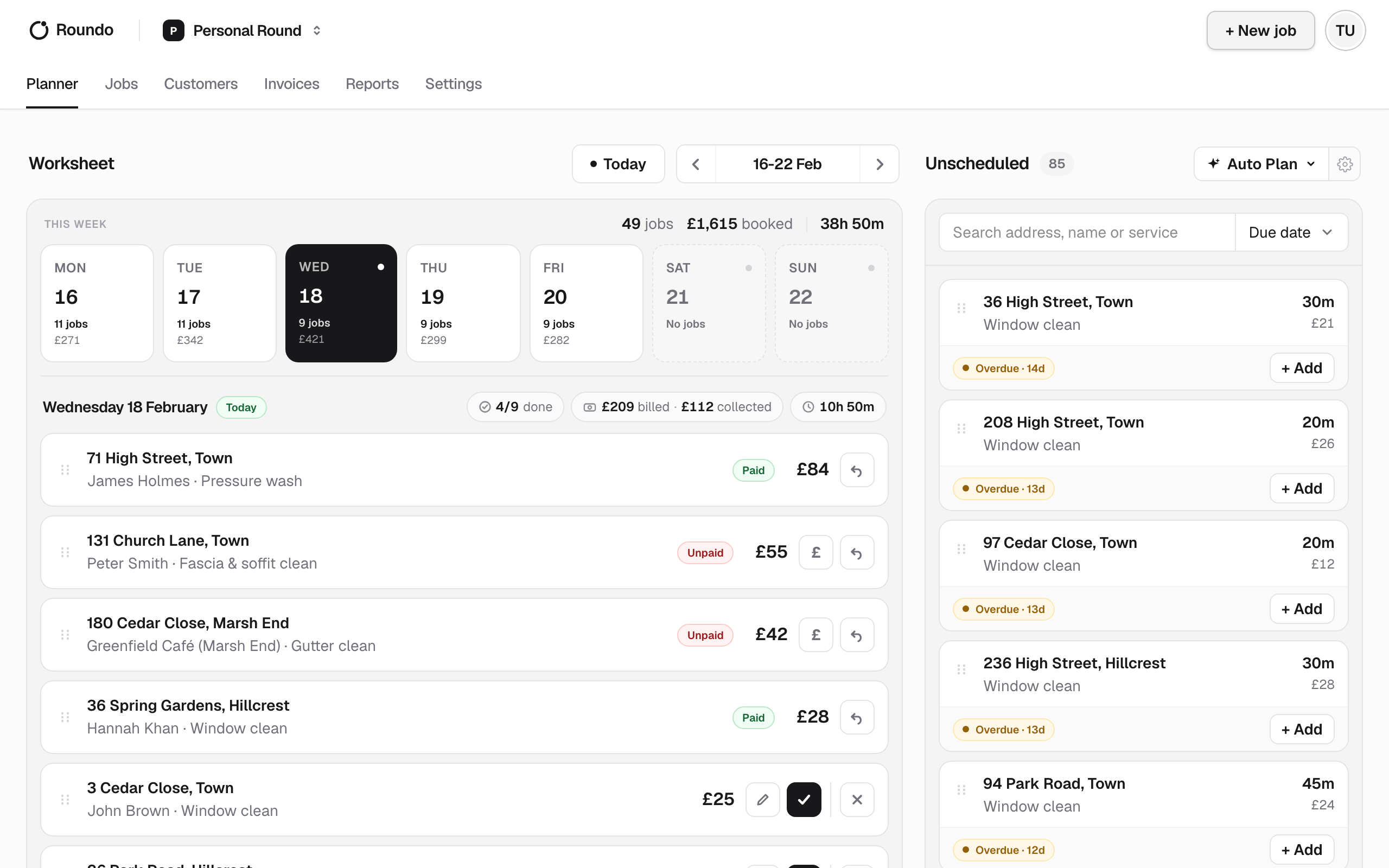
Auto Plan sits on the Planner. The Planner has two sides: your Worksheet, which is the work booked onto each day, and Unscheduled, which is everything that’s due but not yet placed. You can always drag a job from Unscheduled onto a day by hand. Auto Plan just does that same placement for you, in bulk, in one move.
The planner always works on your active round. A round is one person’s whole book of jobs, so Auto Plan is planning that book across the days of the week, not juggling different people. Days are simply the dimension you plan along: the week strip shows each day with its job count and earnings, and any day you’ve marked off is dimmed.
You’ll find the Auto Plan control on the Unscheduled column, with a small cog beside it that takes you straight to its settings.
Plan a day or a week
Auto Plan comes in two sizes. Open Auto Plan and choose Day or Week.
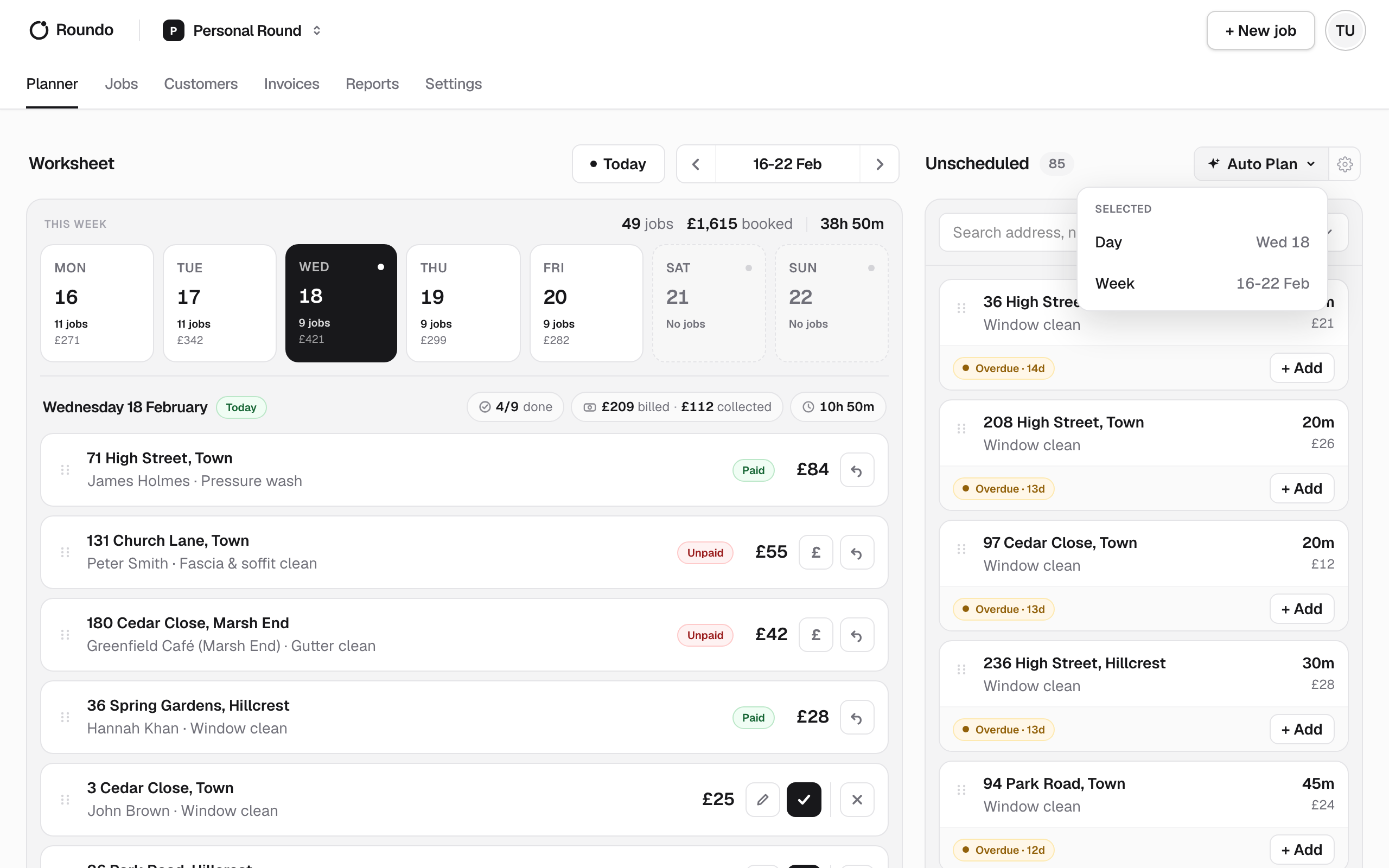
Day fills the single day you’re looking at. Use it when you want to top up one day’s round without touching the rest of the week. Auto Plan never fills the past, so you can plan today or any day ahead, but not a day that’s already gone.
Week fills the whole visible week at once, spreading due work across its working days. If the week you’re planning includes today, Roundo first asks whether to include today or start from tomorrow, so it doesn’t pile work onto a day you’re already part way through. A week entirely in the future just plans all its days with no prompt.
Either way, if there’s nothing due to place, Auto Plan tells you the backlog is clear rather than doing anything silently.
The preview, then Apply
Auto Plan never changes your worksheet without showing you first. A run produces a preview: the proposed jobs appear as faint ghost cards on the days they’d land on, and a bar along the bottom sums it up, for example how many jobs it planned and across how many days.
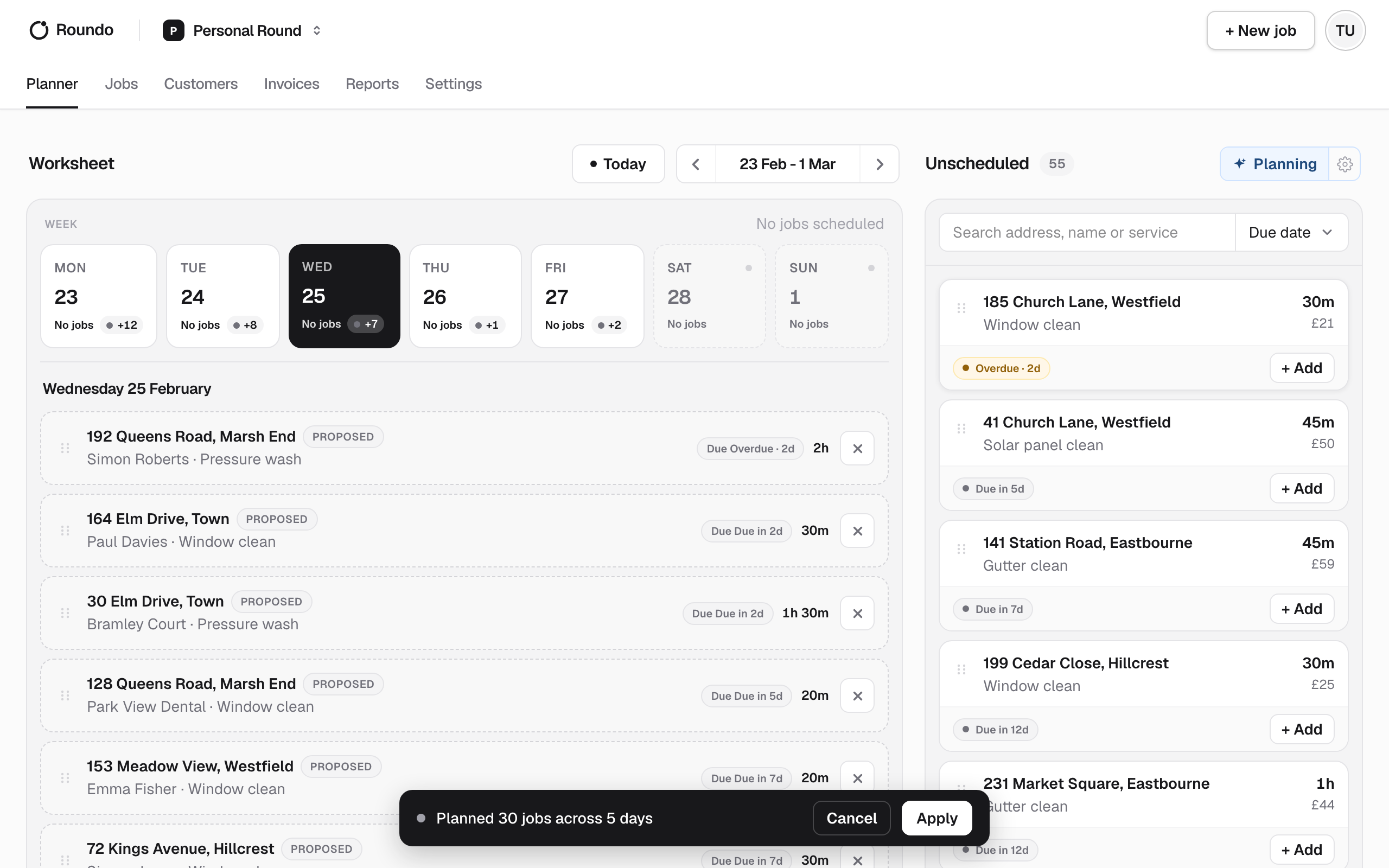
The preview is yours to adjust. You can remove a ghost you don’t want, or drag a ghost to a different day. When it looks right, choose Apply and Roundo commits exactly those placements in one go. Choose Cancel and nothing happens at all.
If some jobs couldn’t be placed, the bar says so and lists them with a plain reason, such as no working day in range allowing the job, or a day already being full. Those jobs simply stay in Unscheduled, ready for you to make room and run again.
Auto Plan is additive
A run only fills empty capacity. It never moves or removes work you’ve already got on the worksheet. That means re-running Auto Plan is safe and expected: plan a week, do a few jobs by hand, free up an afternoon, and run it again to fill the gap. Each run just tops up what’s there.
Set your fillable hours
Auto Plan needs to know how much you actually work each day, or it can’t judge when a day is full. You set this once under Settings, on the Auto Plan page, in the Fillable hours section.
There’s a row per weekday. For each day you either set how many hours you’ll work or turn the day off. Auto Plan fills each working day up to its hours and skips any day you’ve turned off, so your weekends stay clear unless you want them. Change these and every future plan respects the new shape of your week.
Group jobs into areas
An area is a set of jobs on the same road that you like to do together in one trip. You create areas under Settings, and you put a job in an area from the job’s own Area field.
Areas matter to Auto Plan because it tries to keep an area together on one day rather than scattering a single street across the week. A run either places the whole area on a day that has room for it, or it leaves the area for you rather than splitting it up. That’s why a couple of the “couldn’t be placed” reasons are about an area as a whole not fitting.
Let areas run a little overdue
Jobs on the same road rarely fall due on the exact same day, so keeping an area together sometimes means letting the earlier jobs wait a little. The Tolerance setting, next to your fillable hours, controls how far past its due date a job may wait so it can go out with the rest of its area on one trip.
Set it to zero and Roundo only groups jobs that are due the same day. Raise it and a job can sit a few days overdue to travel with its street. It’s the dial between doing everything on the nose and doing everything in efficient trips.
Putting it together
Set your fillable hours so Roundo knows your week, group the jobs you do together into areas, then open Auto Plan and choose Day or Week to fill the worksheet. Check the preview, nudge anything you want, and Apply. From there you work the day on the worksheet like normal, and when a gap opens up, run it again.
If you’re still setting up your round, start by getting your work in first: see Create a job and Add a customer.